

Three steps between you and being on the air.
Enter your callsign
That’s it. No radio hookup, no software install, no cables to the shack.
Your channel goes live
Contacts, maps, propagation, and DX activity start rotating on screen automatically.
Leave it running
It just plays. Glance up any time and see what your station’s been up to.
What’s on the channel
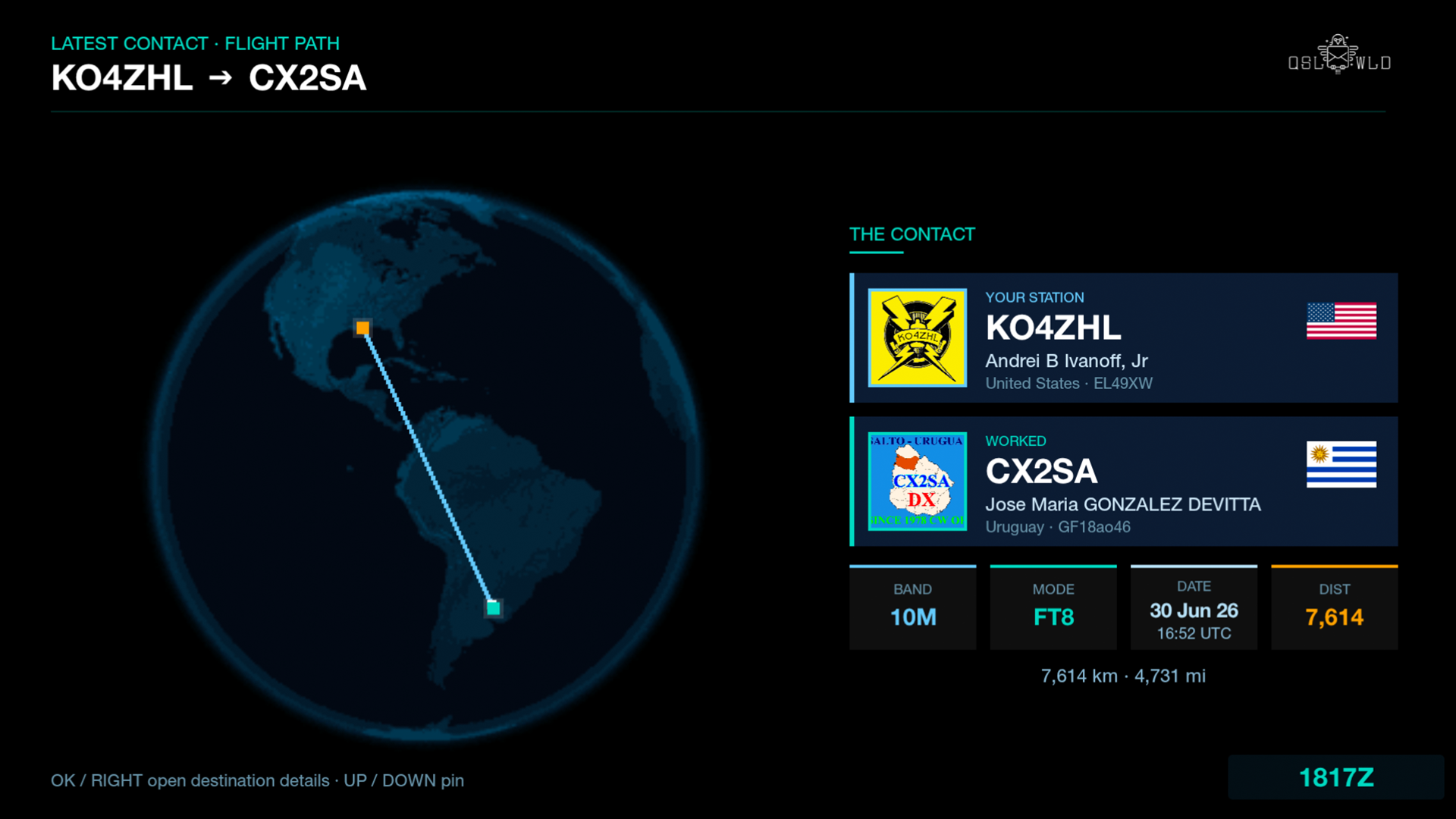
Latest contact, live
Every QSO lands on screen the moment it happens — both operators, flags, and the flight path between you.
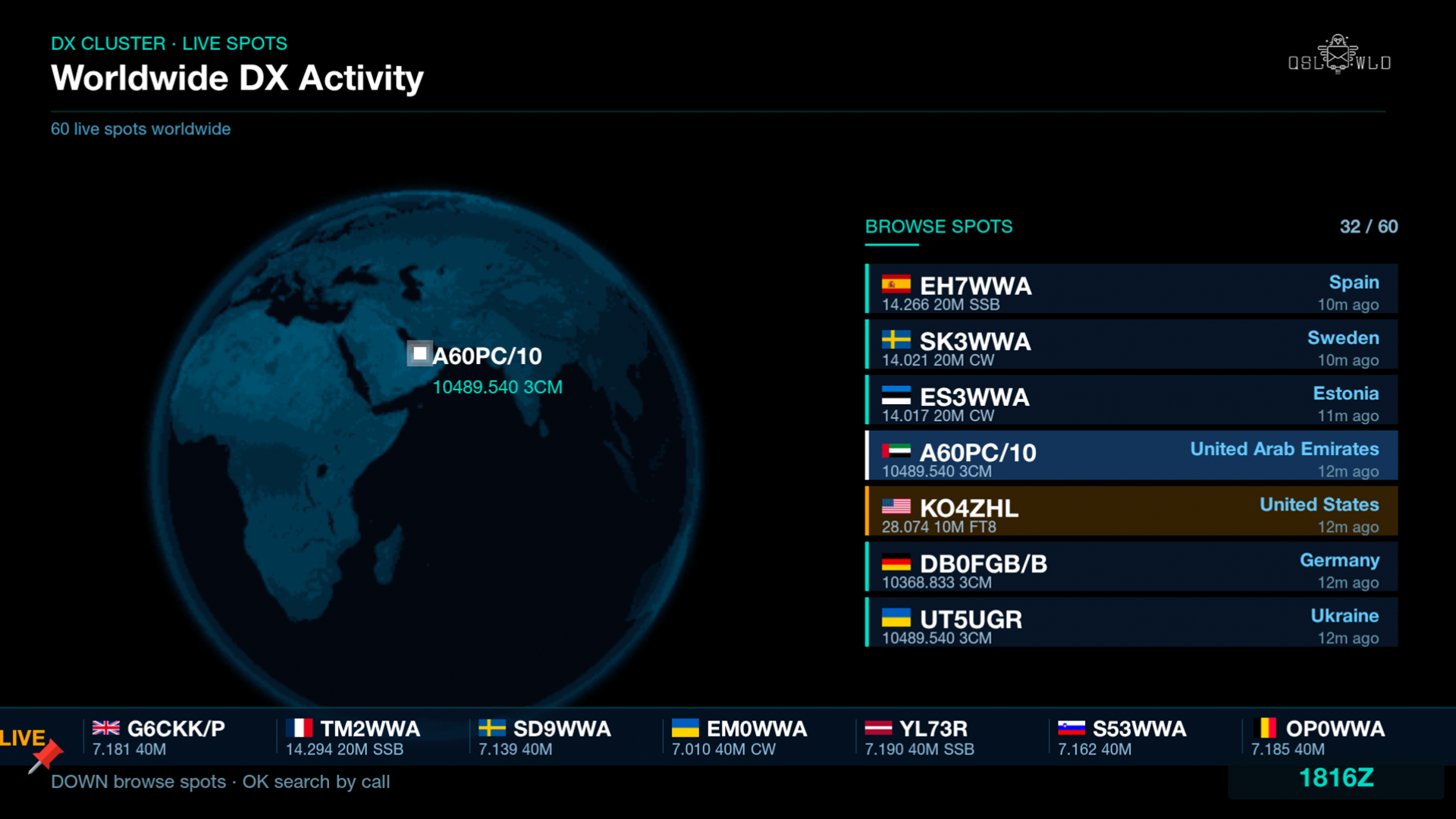
Worldwide DX, as it happens
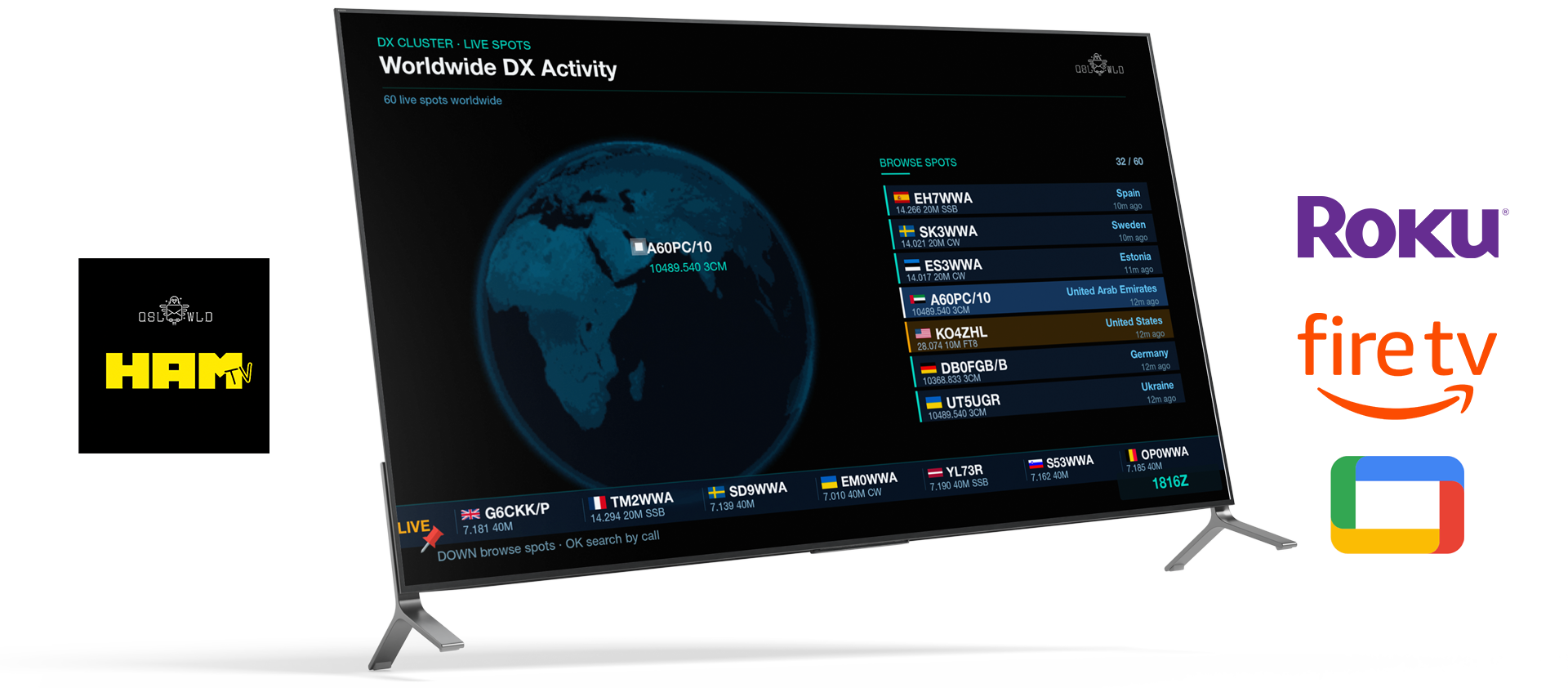
A live cluster feed and 3D globe of spots from around the world — searchable by callsign or prefix.
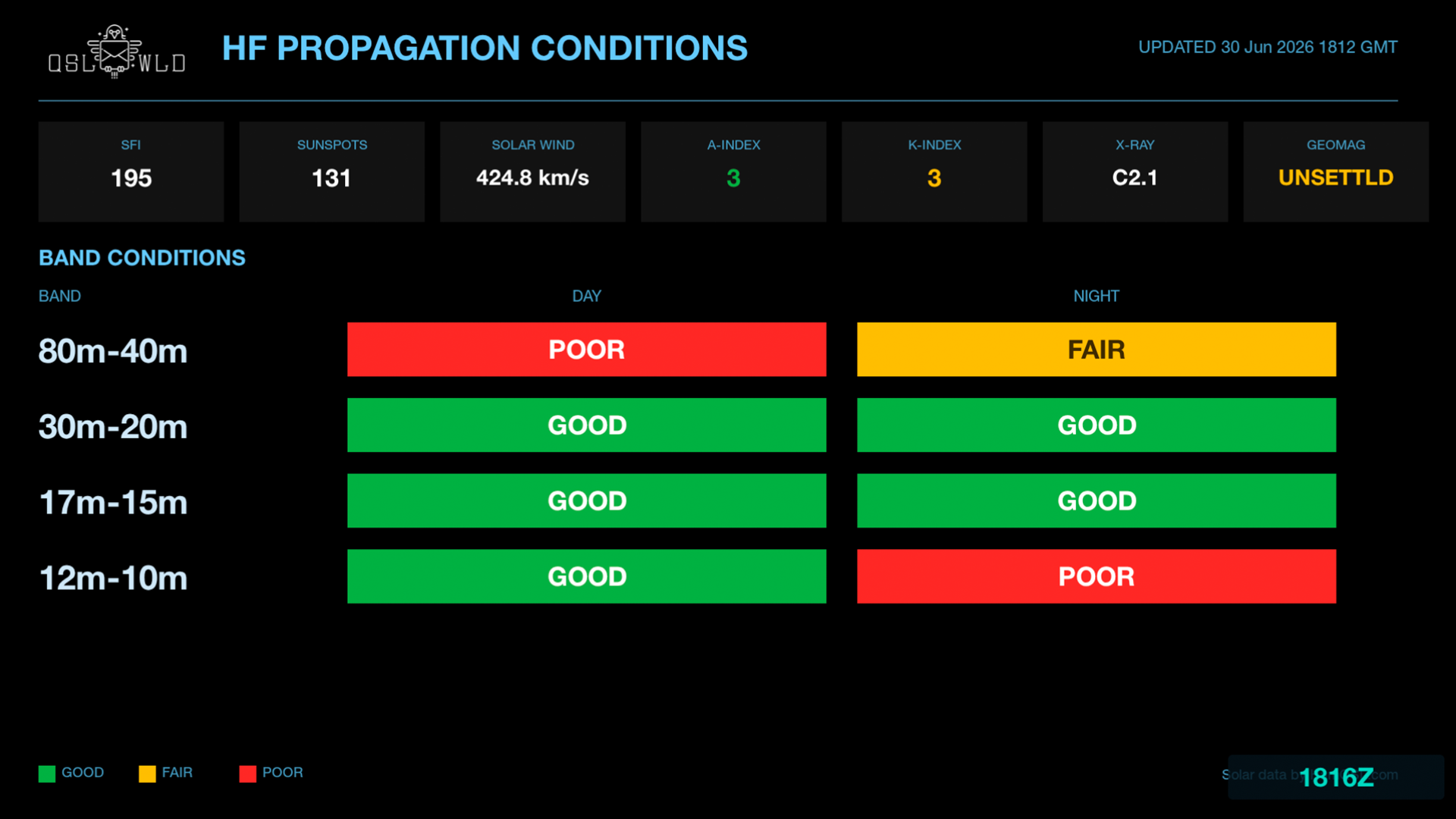
Band conditions at a glance
SFI, sunspots, K-index, and per-band day/night conditions, always current.
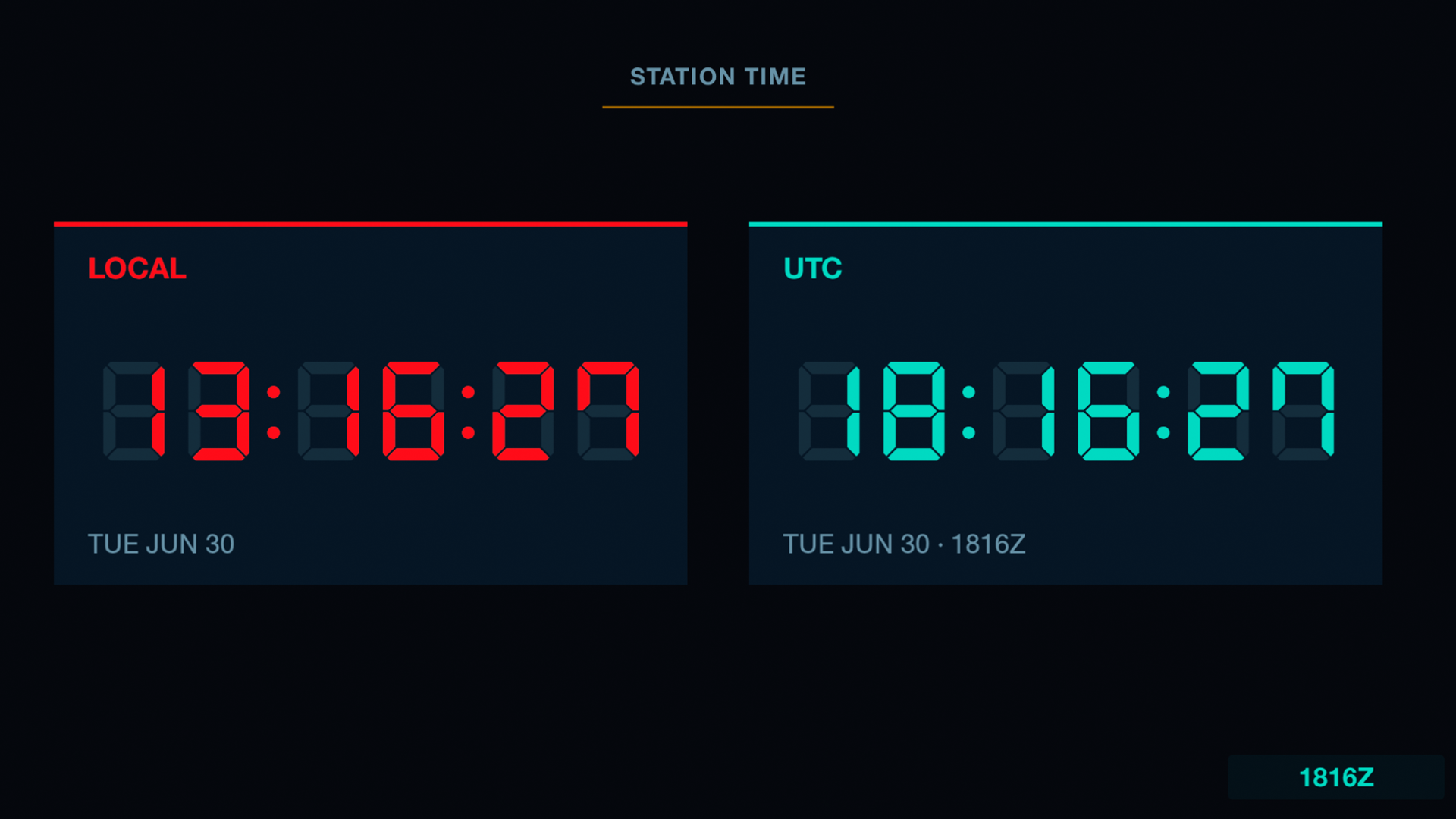
Local and UTC, always visible
Big, legible readouts in local time and ham HHMMZ format.
One channel. No add-ons.
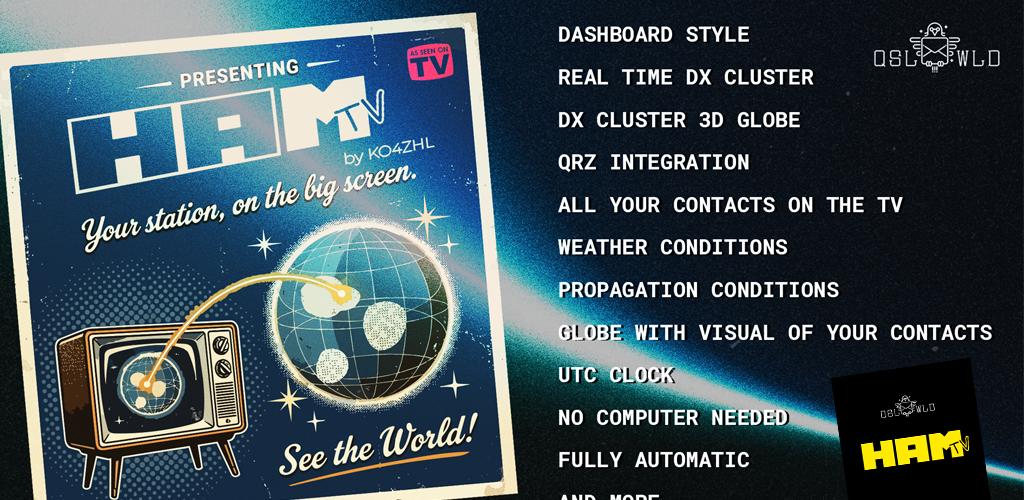
Add HAM TV to your Roku
Available now on any Roku TV or Roku streaming device. Just search the Apps menu — coming soon to Amazon Fire TV and Google TV.
Press Home on your remote
Then select Streaming Channels (also called the Streaming Store) from the Roku home screen.
Search “HAM TV”
Look for this icon in the Roku store. Type HAM TV on the on-screen keyboard to find it.
Select “Add Channel”
Highlight it, press OK, then choose Add Channel. It’ll appear on your home screen in seconds.
Enter your callsign
Open the channel, enter your Hamilton Pro key or scan the QR code, and your channel goes live.
HAM TV is included free with Hamilton Pro — the same key that activates your Hamilton desktop apps signs you in to your channel.
What you need
- A Roku device or Roku TV with an internet connection (Fire TV and Google TV coming soon)
- A QSL World account with your callsign and logged contacts
- A Hamilton Pro license key (included free with Hamilton Pro)
Need help? Email support@autoft8.com